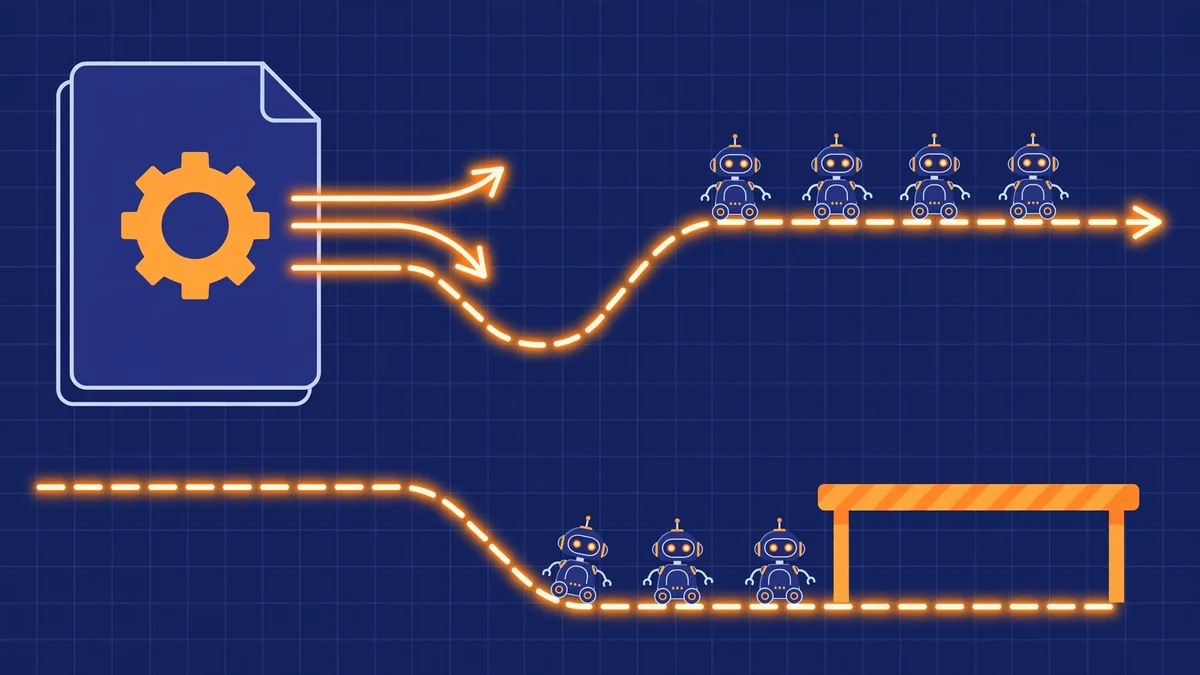
Picture this: Sunday morning, Google Search Console flags half your pages “Blocked by robots.txt” — Friday’s deploy carried the staging file to production. An illustrative scenario, but most practitioners have lived it. This barely-a-kilobyte file decides whether Google sees your business at all.
This robots.txt guide covers the full beginner’s picture: what the file does, exact syntax with copy-paste examples, the seven mistakes that cause real damage, and how to handle AI crawlers in 2026. All facts verified October 2026.
Short version: robots.txt tells search engine crawlers which parts of your site they may visit. It controls crawling, not indexing — blocking a page does not remove it from Google. For most small sites, a short file that allows everything and lists your sitemap is the entire job, and the starting point this robots.txt guide builds on.
What is robots.txt, and what does it actually do?
A robots.txt file is a small plain-text file at your website’s root (yoursite.com/robots.txt) instructing search engine bots which paths they may crawl. A crawler like Googlebot reads it first and obeys what it finds — the bouncer’s list at your site’s door. It manages who goes where, but cannot erase anyone’s memory of the place: the core distinction of this robots.txt guide.
Definition: robots.txt implements the Robots Exclusion Protocol (REP), an official internet standard (RFC 9309, adopted 2022) giving website owners voluntary, polite controls over automated crawlers.
It does three jobs well: keeping crawlers out of admin areas, saving crawl budget on junk URLs, and pointing them to your XML sitemap. What it never does: remove pages from Google’s index. A blocked URL can still appear in results if backlinks from other sites point to it — for removal, use a noindex tag on a crawlable page.
The contrarian truth: most small websites should barely touch this file. Allow-everything is correct for the vast majority of Saudi SME sites, and over-blocking is a far bigger risk than under-blocking.
How does Google actually read your robots.txt file?
Googlebot fetches your robots.txt from the domain root before crawling anything else, parses at least the first 500 kilobytes, and caches the result for up to 24 hours. A fix you publish today typically takes a day to change Google’s behaviour — longer if the refresh fails. This robots.txt guide treats that delay as a planning fact, not a footnote.
Mechanics that matter for this robots.txt guide, confirmed as of October 2026:
- Location is strict. Root only, lowercase, plain text, UTF-8. Subfolder copies are ignored.
- One file per host.
wwwand non-wwware different hosts; serve the same file or redirect. - Server errors are dangerous. A 500-series error on robots.txt reads as “crawl nothing.” A 404 means “no restrictions.”
- A suggestion, not a lock. Well-behaved crawlers honour it across every algorithm update; scrapers ignore it.
What is the robots.txt syntax? A line-by-line breakdown
The syntax is four directives, and this robots.txt guide keeps them plain. User-agent names the crawler the rules apply to (* means all). Disallow lists paths the crawler must not fetch. Allow carves an exception inside a blocked path. Sitemap gives your XML sitemap’s full URL. Plus two wildcards: * matches any character sequence, $ marks a URL’s end.
| Directive | What it does | Example |
|---|---|---|
User-agent: | Targets a crawler (* = all) | User-agent: Googlebot |
Disallow: | Blocks URL paths from crawling | Disallow: /admin/ |
Allow: | Re-allows a path inside a blocked area | Allow: /media/public/ |
Sitemap: | Points crawlers at your XML sitemap | Sitemap: https://yoursite.com/sitemap.xml |
Matching rules that trip up beginners: the longest match wins, and on an Allow/Disallow tie, Allow wins. A crawler follows only its most specific group — Googlebot ignores your * group when a Googlebot group exists. Paths are case-sensitive (/Admin/ ≠ /admin/). An empty Disallow: blocks nothing, and # starts a comment. (Search Engine Land’s 2026 guide covers the same four directives with more examples.)
A minimal, complete file for most sites:
User-agent: *
Disallow:

Sitemap: https://yoursite.com/sitemap.xml
What should your robots.txt file actually contain?
Start from “allow everything,” then block only paths with no search value: admin areas, carts, checkouts, account pages, internal search, and parameter URLs that spawn infinite duplicates. Always end with your Sitemap: line. If you cannot justify a Disallow in one sentence, delete it — restraint is the whole philosophy of this robots.txt guide.
Minimal: the three-line file above.
WordPress:
User-agent: *
Disallow: /wp-admin/
Disallow: /wp-includes/
Disallow: /?s=
Allow: /wp-admin/admin-ajax.php

Sitemap: https://yoursite.com/sitemap.xml
The Allow for admin-ajax.php matters — blocking it breaks forms and plugin features.
Online store:
User-agent: *
Disallow: /cart/
Disallow: /checkout/
Disallow: /account/
Disallow: /wishlist/
Disallow: /*?sort=
Disallow: /*?filter=
Disallow: /*?sessionid=

Sitemap: https://yoursite.com/sitemap.xml
Where filtered URLs must stay crawlable for shoppers, a canonical tag handles the duplicate content more gracefully than a block.
A Jeddah store before White Friday: crawl budget meets peak season
Picture a Jeddah fashion store before White Friday: 800 products, but Googlebot spends its visits on 40,000 filter-URL variants instead of revenue-earning pages. Eight weeks out, three Disallow lines for the parameter patterns shift crawl stats toward real pages. Pair it with strong internal linking toward those pages. Audit your robots.txt 6–8 weeks before peak season — White Friday for e-commerce, Ramadan for hospitality. For deeper crawl waste, our technical on-page work covers full audits.
How do you create or edit robots.txt on WordPress?
WordPress generates a virtual robots.txt automatically — most installs have no physical file. The default blocks /wp-admin/ and allows admin-ajax.php. To customise it, use your SEO plugin’s editor (Rank Math: General Settings → Edit robots.txt; Yoast: SEO → Tools → File editor), or upload a physical robots.txt to the domain root — the physical file overrides the virtual one, the approach this robots.txt guide recommends.
After editing: reload yoursite.com/robots.txt to confirm, then test it below. Note: Saudi shared hosts cache aggressively — purge the host cache if edits do not appear — and never edit in Word or Google Docs. Plain-text editors only.
What are the 7 robots.txt mistakes that hurt websites?
The seven killers: (1) Disallow: / left live after staging, (2) blocking the CSS/JavaScript Google needs to render pages, (3) robots.txt as a noindex substitute, (4) case-sensitivity errors, (5) blocking your own sitemap, (6) the file in a subfolder, (7) treating robots.txt as security. Thirty-second fixes — once you know where to look.
- The staging leftover. Symptom: the whole site vanishes from Google after a launch. Fix: check
yoursite.com/robots.txtafter every launch or migration — make it a go-live checklist item. - Blocking CSS and JavaScript. Symptom: rankings slip after a theme change; URL Inspection shows a broken render. Fix: never block resource directories like
/wp-content/or/assets/— Google renders with its smartphone crawler (mobile-first indexing). - Robots.txt as “removal.” Symptom: the page still appears in Google with no description. Fix: allow crawling and use a
noindexmeta tag instead — Google cannot see noindex on a page it may not crawl. - Case-sensitivity slips. Symptom: a rule that “should work” does nothing. Fix: copy paths exactly from real URLs; use standard capitalisation (
User-agent:,Disallow:). - Blocking your own sitemap. Symptom: new pages take forever to be discovered. Fix: keep the sitemap path crawlable and declare it with
Sitemap:. - File in the wrong place. Symptom: rules have zero effect. Fix: domain root, all lowercase, plain text.
- Treating it as privacy. Symptom: “private” paths surface in results — or competitors read your robots.txt to map your structure. Fix: login walls for anything sensitive.
Should you block AI bots in your robots.txt file?
It depends on the bot’s job. Training crawlers (GPTBot, ClaudeBot, CCBot, Bytespider) feed future models — blocking them opts you out of training. Search and retrieval bots (OAI-SearchBot, PerplexityBot) power citations in AI answers — blocking those costs you visibility. Google-Extended is not a crawler: it is a control token, and blocking it never affects your Google rankings or AI Overviews.
| Token | Owner | Job | Blocking it… |
|---|---|---|---|
GPTBot | OpenAI | Training | Opts out of future GPT training |
ClaudeBot | Anthropic | Training | Exclusion from Claude training |
CCBot | Common Crawl | Open crawl corpus | Removes you from datasets many models train on |
Google-Extended | Control token, does not crawl | Opts out of Gemini training; no Search impact | |
OAI-SearchBot | OpenAI | ChatGPT Search retrieval | Fewer citations in ChatGPT answers |
PerplexityBot | Perplexity | Search retrieval | Fewer citations in Perplexity answers |
The trade-off: blocking training bots is legitimate, but AI citations are becoming real discovery — a Jeddah restaurant cited in a ChatGPT itinerary gets customers it never paid to reach. “Block training, allow search” is the most common 2026 setup:
# Block training crawlers, keep AI search citations
User-agent: GPTBot
Disallow: /
User-agent: ClaudeBot
Disallow: /
User-agent: CCBot
Disallow: /
User-agent: Google-Extended
Disallow: /
Copy tokens exactly — Google-Extended, not the Google-Expanded misspelling seen in forum advice. A wrong token matches nothing. User-triggered fetchers (ChatGPT-User, Perplexity-User) generally ignore robots.txt, since a human asked for the fetch. Token lists evolve as new AI crawlers appear; SurfacedBy’s AI bot crawler reference maintains a current inventory. For genuine access control, use authentication.
How do you test that your robots.txt file works?
Four checks, five minutes: (1) open yoursite.com/robots.txt and read it with fresh eyes, (2) check Search Console’s robots.txt report under Settings, (3) run key URLs through URL Inspection to confirm Googlebot can reach them, and (4) crawl the site with Screaming Frog — this robots.txt guide insists on step 4, which finds what eyeballing misses.
Make it a habit — this robots.txt guide’s standing rule: re-test after every redesign, migration, or plugin change. The “Blocked by robots.txt” report under Indexing → Pages is your early-warning radar.
On expectations: recovery timelines are ranges, not promises — see how we talk about SEO results. If testing reveals deeper crawl chaos, a technical audit usually pays for itself. Our SEO services include crawl and indexation audits — see our SEO pricing to compare plans.
Frequently asked questions
Does robots.txt remove a page from Google search results?
No. Robots.txt only stops crawling; Google may still index a blocked URL if other sites link to it, showing a bare link without a description. To genuinely remove a page, let Google crawl it and add a noindex meta tag or X-Robots-Tag header. Never combine both on one URL — blocked noindex can never be seen.
Where do I put robots.txt on a WordPress site?
WordPress generates a virtual robots.txt, so there is usually no physical file. Customise it via Rank Math (General Settings → Edit robots.txt) or Yoast (SEO → Tools → File editor), or upload a physical robots.txt to the domain root — the physical file wins. No file-editor plugin? Any host file-manager upload works. Always reload yoursite.com/robots.txt afterwards.
How long does Google take to notice robots.txt changes?
Google caches robots.txt for up to 24 hours, so allow about a day before new rules change Googlebot’s behaviour — longer if a refresh fails. Pages that dropped from the index need re-crawling on top of that. Test in Search Console, wait a day, then check crawl stats and the “Blocked by robots.txt” report.
What is the difference between robots.txt and noindex?
Robots.txt controls crawling (whether bots may fetch a URL); noindex controls indexing (whether it may appear in results). Use robots.txt to save crawl budget on junk URLs; use noindex on crawlable pages you want excluded, like thank-you pages or internal reports. A handy rule: no search value for anyone, block it; value for visitors but not searchers, let it be crawled and noindex it.
Should I block GPTBot and other AI crawlers?
Only if you have decided against your content training future AI models. Blocking training crawlers (GPTBot, ClaudeBot, CCBot, Google-Extended) is a legitimate content-policy choice, but blocking search crawlers (OAI-SearchBot, PerplexityBot) costs you citations in AI answers — a discovery channel that keeps growing through 2026. Google-Extended, meanwhile, is only a control token, never a ranking factor.
Why does Search Console say my page is “Blocked by robots.txt”?
A Disallow rule in your file matches that URL. Check Indexing → Pages → Blocked by robots.txt, open yoursite.com/robots.txt, and find the rule — usually a staging leftover, an over-broad wildcard, or a plugin-generated line. Narrow or remove it, confirm access via URL Inspection, then request re-indexing of the URL to speed recovery.
Can I use robots.txt to hide private pages?
No — this is a dangerous misunderstanding. Robots.txt is a public file; anyone can open yoursite.com/robots.txt and read exactly which paths you are trying to hide, which can attract precisely the attention you wanted to avoid. It is a polite request to well-behaved crawlers, not access control. Sensitive content needs proper authentication, like a login wall that crawlers cannot pass.
هل يساعد ملف robots.txt في أرشفة الموقع في جوجل؟
نعم، بشكل غير مباشر. ملف robots.txt لا يُضيف صفحاتك إلى جوجل بنفسه، لكنه يوجّه الزاحف نحو المحتوى المهم ويمنعه من إضاعة الوقت على صفحات غير مفيدة — وهذا جوهر أرشفة الموقع في جوجل (arshafat al-mawqi’ fi google, “getting a website indexed on Google”, MSA). أضف سطر Sitemap: بعنوان خريطة موقعك، وتأكد أن الصفحات المهمة غير محظورة، ثم راقب تقرير التغطية في Search Console.
The bottom line
Remember that Sunday-morning Search Console scare? The fix took thirty seconds; the recovery took days. That asymmetry is the whole lesson of this robots.txt guide: trivial to write, expensive to get wrong.
Your three steps this week: read every line of yoursite.com/robots.txt; check the “Blocked by robots.txt” report; add the file to your go-live checklist. What is the one robots.txt line on your site that you could not explain?
Written by Mohammad Muttiullah, Founder of EazyRankSEO. Mohammad leads technical SEO strategy for businesses across Riyadh, Jeddah, Makkah, and Madinah. About our team.